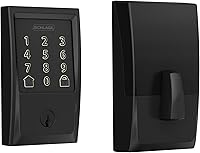
How to Program a Schlage Connect Smart Deadbolt
Program a Schlage Connect in two stages: set codes at the keypad, then pair the lock to a Z-Wave hub for app control. The keypad step takes minutes and needs only the default programming code, which is printed inside the battery cover.
On this page (9 sections)
- What you need before programming a Schlage Connect
- How do you put a Schlage Connect into programming mode?
- How to add a user code to a Schlage Connect
- How do you change or delete a Schlage Connect user code?
- How do you pair a Schlage Connect to a Z-Wave hub?
- How do you manage codes from the app after pairing?
- What should you do when programming fails?
- Which lock fits your door and your plan?
- The bottom line on programming a Schlage Connect
Program a Schlage Connect smart deadbolt in two stages: set your access codes at the keypad first, then pair the lock to a Z-Wave hub for app and voice control. The keypad step needs only the default programming code and takes a few minutes.
The order matters. A code set at the keypad works on its own, but app control and remote locking only come after pairing.
The steps below cover both, plus what to do when a code or a pairing attempt fails.
What you need before programming a Schlage Connect
Gather four things first: fresh AA batteries, the default programming code, a 4-digit user code you want to use, and your Z-Wave hub's app if you plan to add the lock to a smart home. The Connect runs on 4 AA batteries, and Schlage includes them in the box.
The default programming code sits on a sticker inside the battery cover. Open the interior side of the lock to find it.
This 6-digit code is not the same as your door code, and you should replace it with your own once setup is done.
If you have a hub such as SmartThings, Ring Alarm, Vera or Nexia, open its app before you start the pairing step. The lock's Z-Wave radio needs the hub in pairing mode to join the network.
The hub is sold separately from the lock.
How do you put a Schlage Connect into programming mode?
Press the Schlage button, enter the 6-digit programming code, and press the Schlage button again to enter programming mode. The keypad lights up and stays lit while the lock waits for a command.
The Schlage button sits at the top of the keypad and also serves as the one-touch lock. A short pause between the button press and the code entry keeps the sequence clean.
If the keypad blinks or the lock beeps in a warning pattern, wait a few seconds and try again from the start.
Programming mode times out if you pause too long between commands. Have your four-digit user code ready before you begin so you can enter it in one go.
The touchscreen is backlit, so the buttons are easy to read in a dim entryway.
How to add a user code to a Schlage Connect
In programming mode, enter 1, then your 4-digit user code, then the same code again. The lock confirms with a beep and the keypad finishes the sequence.
That code now opens the door from the outside.
Schlage says the Connect supports up to 30 unique access codes. That count covers the programming code as well, so leave room for it when you plan codes for family, a dog walker or a cleaner.
Each user code is four digits.
Keep codes out of easy reach of the keypad itself. Avoid using house numbers or birth dates, since the touchscreen shows fingerprints on the buttons you press most.
Wipe the keypad now and then for a clean surface.
The Schlage Connect is one of the keypad deadbolts we cover in our roundup of the cheap smart lock options. It brings a touchscreen, Z-Wave and an alarm in one unit.
How do you change or delete a Schlage Connect user code?
Enter programming mode, then use the code-management command to overwrite or remove a user code. A new 4-digit code entered into the same slot replaces the old one, and deleting the slot leaves it empty.
Change codes when someone moves out or when a code has been shared more widely than you meant. Overwriting is the simpler route: enter the slot, then the new code twice.
There's no need to hunt for the old code first.
Deleting follows the same path, using the delete command in place of the add command. Confirm the change by locking and opening with the new code while the door is open.
If the old code still works, repeat the sequence and listen for the confirming beep.
Write down which slot holds which person's code and keep the list somewhere locked or in a password manager. That record saves time later when you need to clear one code without touching the others.
How do you pair a Schlage Connect to a Z-Wave hub?
Put your hub into Z-Wave pairing mode, then put the lock into enrollment mode so the two find each other. The Connect uses Z-Wave Plus with S2 security encryption, and Schlage lists SmartThings, Ring Alarm, Nexia and Vera among the compatible controllers.
Start in the hub app, not at the lock. Each hub has its own wording for the step, but the sequence is the same: choose add device, select the lock type, and let the hub listen.
Then run the lock's enrollment command at the keypad.
Bring the hub close to the door for the first attempt. Z-Wave signals pass through walls, but a long distance and thick construction can slow the handshake.
If the lock doesn't appear in the app within a couple of minutes, cancel on both ends and start over.
Once paired, the app shows the lock's status and can send lock and open commands. You can also give voice commands through Amazon Alexa or Google Assistant when your hub supports them.
The keypad codes set earlier keep working alongside the app.
How do you manage codes from the app after pairing?
After pairing, most Z-Wave hubs let you add, edit and remove user codes from the app instead of walking to the door. The app sends the change over Z-Wave and the lock confirms it.
The exact menu differs by hub. In general, open the lock's device page, find the code or user management section, and follow the prompts.
You'll assign each person a 4-digit code and a name so you can tell entries apart.
App management is handy for a temporary code for a house sitter or a contractor. Create the code, share it, then delete it when the work is done.
A low-battery alert in the app also gives notice before the AA cells run out, alongside the indicator on the lock screen.
The lock's built-in alarm adds another layer here. You can set it to sound at the keypad for tampering, and the app still reports the lock's state.
For a look at the keypad-only side of the brand, read our Schlage BE365 review.
What should you do when programming fails?
Start by replacing the batteries and retrying the sequence slowly. Weak cells cause failed commands and missed beeps more often than a faulty lock.
The Connect runs up to about a year on 4 AA batteries with typical use.
If a code won't save, check that you're in programming mode when you enter it. The mode times out, and a silent timeout looks like a rejected code.
Press the Schlage button and re-enter the programming code to restart.
When the hub won't find the lock, run an exclusion first. Most hubs have a remove or exclude device option, and clearing the old pairing gives the lock a clean slate.
Then repeat the pairing step from the hub's side.
If the keypad stops responding altogether, a full reset clears every code and unpairs the lock. Check the steps for your model in Schlage's instructions before you reset, because you'll need to reprogram everything afterward.
Which lock fits your door and your plan?
The right pick depends on what you want to control. Choose the Schlage Connect if you want Z-Wave app control, voice commands and up to 30 codes.
Its metal build carries an ANSI/BHMA Grade 1/AAA rating and a built-in alarm, and the touchscreen is backlit for dark entryways.
The Kwikset HomeConnect 620 is the other connected option here. It uses Z-Wave Long Range and SmartStart for simpler hub pairing, and it holds up to 250 user codes, far more than most homes need.
Ring Alarm owners get direct control through the Ring app.
If you don't need an app at all, the Schlage BE365 keeps the same keypad idea without Z-Wave. It comes with 2 pre-programmed codes and takes up to 19, runs on a 9V battery, and pairs with no hub.
For anyone who just wants keyless entry, it's the simpler and more affordable route.
One more check before you buy: the door's location. An exterior lock faces rain and sun, so read our guide on whether smart locks are weatherproof for outdoor doors.
And if you're weighing another brand's setup steps, our walkthrough on how to program a Yale smart lock follows a similar keypad-then-app order.
The bottom line on programming a Schlage Connect
Set the keypad codes first, then pair the lock to your hub and manage codes from the app afterward. That order keeps the lock usable even if the hub pairing takes a second try.
Reach for the Schlage Connect when you want Z-Wave app control and voice commands with a 30-code limit. Pick the Kwikset HomeConnect 620 if you need a long code list or Ring Alarm integration.
Go with the Schlage BE365 if keyless entry without a hub is all you need. Whichever you choose, keep the default programming code safe and change it early.
Frequently asked questions
What is the default programming code on a Schlage Connect?
It's the 6-digit code printed on a sticker inside the battery cover, not a code you choose. Install fresh batteries and open the interior cover to read it before you start.
Enter that code to reach programming mode and to change the code to your own.
How many codes can I add to a Schlage Connect?
The Schlage Connect takes up to 30 unique access codes for keyless entry. Schlage counts the programming code among the lock's user codes, so keep track of which slots you use.
Codes are four digits each and entered on the touchscreen keypad.
Can I program a Schlage Connect without a hub?
Yes. You can add, change and delete four-digit user codes directly at the keypad without any hub.
A Z-Wave hub is only needed for app control, remote locking and schedules.
The hub is sold separately from the lock.
How do I reset a Schlage Connect to factory defaults?
Open the interior battery cover and press and hold the reset button until the lock beeps and the indicator light responds. A full reset deletes every user code and unpairs the lock from its hub.
Read the steps for your model in Schlage's instructions before you do it.
Why won't my Schlage Connect connect to my smart home hub?
Check that the lock is within Z-Wave range of the hub or a repeater, and that you put the hub into pairing mode first. The Connect uses Z-Wave Plus with S2 encryption.
If pairing still fails, exclude the lock from the hub, then start the pairing step again.