How to Choose a Keyless Door Lock for Your Home
To choose a keyless door lock, check the door fit first, then match entry methods, backup access and smart features to your routine. A keypad deadbolt keeps things simple, while app, fingerprint or voice controls add options that may depend on batteries, Wi-Fi or a hub.
On this page (10 sections)
- What type of keyless door lock fits your door?
- How to choose a keyless door lock for your routine
- Do you need app control or remote access?
- Which backup access should a keyless lock have?
- How should you compare codes and automatic locking?
- Should you choose a fingerprint, keypad or handle lock?
- What security and installation details matter?
- What battery and connectivity habits help?
- What mistakes should you avoid when choosing a keyless door lock?
- How to choose a keyless door lock: which one fits your home?
To choose a keyless door lock, start with door fit, then match its entry methods and backup access to your household. A keypad deadbolt covers code entry, while app, fingerprint and voice features add options that may depend on batteries, Wi-Fi or a hub.
First identify the hardware you are replacing and measure the door. Then compare lock types, access controls, connectivity, battery needs and code management.
For a wider overview before narrowing the options, see our guide to keyless door lock types and features.
What type of keyless door lock fits your door?
Choose a lock that matches the hardware on your door and the kind of replacement you want. A keypad deadbolt focuses on the deadbolt, while a handle lock replaces a knob or lever assembly.
A keypad deadbolt suits you if code entry is the main goal and you want to keep the existing handle. A smart deadbolt adds options such as app control, fingerprints, alerts or smart home connections.
A smart handle lock may suit you if you want to replace the knob or lever as part of the change. It may be the wrong choice if you want to keep the current handle or your door isn't prepared for that style.
Before comparing extra features, check what the lock replaces. Some locks are designed for a standard deadbolt opening, while handle locks have different door preparation needs.
Measure door thickness, backset and existing hole sizes. Our door measuring guide for keyless locks walks through those checks.
How to choose a keyless door lock for your routine
Choose entry methods you'll use regularly and consider the backup for each one. A keypad may be enough for everyday entry, while a household with varied routines may value fingerprints, phones or temporary codes.
| Your priority | Look for | Check before choosing |
|---|---|---|
| Simple code entry | Keypad and user codes | How many codes it supports and how to remove old ones |
| Entry without memorizing codes | Fingerprint or phone access | Who can enroll users and what happens if power runs low |
| Letting in visitors remotely | App control and remote access | Wi-Fi, hub or gateway requirements |
| Smart home routines | Compatibility with your ecosystem | Whether a hub or account is required |
| Automatic locking | Auto-lock settings | Delay options and whether the lock has a door sensor |
| Emergency access | Physical key or emergency power option | Where the backup will be kept |
You don't need every available method. Pick a primary way in that works for the people who use the door, then make sure there's a fallback that doesn't depend on the same phone or network.
The Philips Wi-Fi Smart Deadbolt combines app, passcode, fingerprint, physical key and voice entry. It suits households that want several ways to get in and remote phone control, but may be too connected for someone who only wants a keypad.
For more context on how electronic locks handle access and power, read how an electronic door lock works.
Do you need app control or remote access?
Choose app control if you expect to manage access from your phone; choose remote access if you need to operate or manage the lock when away from home. Some smart locks include Wi-Fi, while others rely on Bluetooth or need a separate hub or gateway for remote features.
Remote access helps when a visitor needs entry while you're away. It also relies on a working app, network connection and suitable setup, so check those requirements before buying.
The Philips Wi-Fi Smart Deadbolt has built-in Wi-Fi, remote phone control and app alerts. It supports a 2.4 GHz network, and the router and lock should be within 65 ft for better remote control.
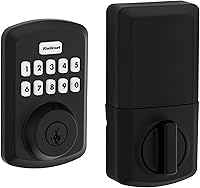
The Kwikset SmartCode 270 is a better fit if you want code access, automatic locking and code controls without phone-based remote access. Skip it if managing the door remotely or adding fingerprints is central to your decision.
A lock that works without Wi-Fi can still provide useful keyless entry. If you mainly want a code instead of a key, extra connectivity may add setup without changing your daily routine.
Our guide to smart lock features worth paying for can help you decide which connected features match your needs. For a keypad-only versus connected option comparison, see smart lock or keypad lock.
Which backup access should a keyless lock have?
Choose a backup you can use if batteries run down, your phone is unavailable or the network stops working. A physical key is familiar, while an emergency charging port or local access method may suit a different setup.
Imagine a real access problem before deciding. If a dead phone would leave you outside, favor a lock with a physical key or keypad access that works without the phone.
If you choose a lock with a physical key, store it somewhere you can reach without relying on the locked door. A backup is only useful if you can get to it when your main entry method fails.
Remote control depends on connectivity. Check which entry methods remain available when the internet is down, and whether the lock itself needs power for those methods.
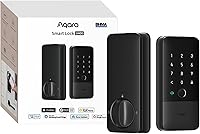
The Aqara U100 provides fingerprint access, passwords, a mechanical key and a USB-C emergency charging port. It suits people who want several local entry options, but remotely configurable passwords through the Aqara Home app require an Aqara Zigbee 3.0 hub.
For other Apple Home access options, see what Apple Home Key means for smart locks. To understand hub requirements, read whether a smart lock needs a hub.
How should you compare codes and automatic locking?
Compare how many codes a lock supports and how easily you can remove or change them. Temporary or one-time codes help when guests need short-term access, while scheduled codes can suit access that starts and ends at set times.
Automatic locking is useful when you sometimes forget to relock the door. Choose a timer that gives you enough time to enter and close the door; remember that a lock without a door sensor may not know whether the door is actually shut.
Check how code changes work before you commit. If several people need access, make sure you can remove a former guest's code without changing everyone's access.
The Kwikset SmartCode 270 supports up to 50 user codes and 10 one-time codes. Its auto-lock timer can be set to 30 seconds, 1 minute, 3 minutes, 5 minutes or 10 minutes.
The Philips Wi-Fi Smart Deadbolt supports up to 100 custom passcodes and one-time or scheduled codes, with auto-lock timing from 10 to 180 seconds. Its auto-lock feature does not include a door sensor, so don't assume the timer confirms that the door is closed.
Code capacity matters less than code management. A shorter list that you keep current is easier to manage than a large collection of unused codes.
Should you choose a fingerprint, keypad or handle lock?
Choose a keypad if you want familiar code entry, a fingerprint reader if quick touch entry matters, and a handle lock if you want to replace a knob or lever. Door preparation and the entry methods your household will use should settle the choice.
A fingerprint reader avoids typing a code, but consider how other household members and visitors will enter. A keypad gives you a shared method without requiring a phone, though you need to remove codes when access changes.
The Yamiry Fingerprint Handle Lock combines a keypad, fingerprint reader, Bluetooth app control, key fobs and mechanical keys. It suits a household that wants several entry choices in a handle assembly, but skip it if you want to retain the current knob or need remote control without a separate gateway.
Its remote control and Alexa features require a separately sold Wi-Fi gateway. Confirm that this extra equipment fits your plans before counting on remote access.
For a broader look at this style, see our smart door handle lock guide.
What security and installation details matter?
Choose a lock that fits the door and frame securely, has code controls you can manage, and offers a backup entry method you'll use. Smart features don't compensate for a poor fit or a bolt that binds.
Check the lock's security certification when one is provided and understand what it covers. The Kwikset SmartCode 270 has a Grade 2 BHMA certification for security, durability and finish, while the Aqara U100 complies with the same safety standard as BHMA Level 3.
Before installation, confirm the latch and strike plate line up with the door frame. A bolt that binds may not lock smoothly, regardless of how many app features the lock offers.
The Philips Wi-Fi Smart Deadbolt is designed for doors 1 3/8 to 2 in thick and installs with a screwdriver. During installation, route its cable beneath the latch and insert the tailpiece into the latch slot, as its instructions specify.
The Kwikset SmartCode 270 also installs with a screwdriver and has BILT 3D interactive instructions. The Yamiry handle lock is designed for most standard American wooden front doors, with a reversible handle for left- or right-handed doors; confirm the fit before starting.
Follow the included instructions in order and test the lock with the door open before closing it. Check that the bolt moves freely and that keypad or fingerprint entry works, then test the backup method you expect to use.
For information about the risks and trade-offs of electronic access, read whether keyless door locks are safe to use.
What battery and connectivity habits help?
Choose a lock whose battery and network needs fit the way you maintain your home. Check the required battery type and keep a replacement plan, because electronic entry depends on the lock having power.
The Philips lock requires AA alkaline LR6 batteries, which aren't included. The Kwikset SmartCode 270 uses 4 AA alkaline batteries, also not included, and its stated battery life is at least 12 months.
The Aqara U100 uses 4 included AA batteries and has a USB-C port for emergency charging. For any lock, learn how it signals low power and act on the warning before the batteries are depleted.
For Wi-Fi features, check the network band and distance requirements before installation. The Philips lock supports 2.4 GHz Wi-Fi and recommends keeping the router within 65 ft for better remote control.
Avoid treating a phone app as the only way to get inside. Keep a working local entry method or accessible key, and make sure every regular user knows how to use it.
What mistakes should you avoid when choosing a keyless door lock?
The most common mistake is buying for features before checking fit and daily use. A lock can have many entry methods and still be the wrong replacement for your door.
Avoid these errors:
- Skipping measurements: Check door thickness, backset, bore size and whether you are replacing a deadbolt or handle.
- Assuming every smart feature is included: Remote access may need Wi-Fi, a hub or a gateway. Confirm what each feature requires.
- Choosing a timer without considering the door: Auto-lock timing doesn't always confirm the door is closed. The Philips model, for example, has no door sensor.
- Relying on one entry method: Keep a backup that will still be available if your phone, network or batteries fail.
- Creating codes without a cleanup habit: Remove old guest codes when access is no longer needed, and make sure you can tell which code belongs to which user.
- Forgetting installation checks: A poorly aligned latch or strike plate can interfere with the bolt. Confirm free movement before relying on the lock.
How to choose a keyless door lock: which one fits your home?
Start with measurements, then choose the simplest access setup that meets your needs. Pick a keypad deadbolt for straightforward code entry, a connected lock if you'll use remote control, and a fingerprint or handle model when those entry methods suit your household.
Choose the Kwikset SmartCode 270 if you want keypad access, one-time codes, adjustable auto-lock timing and Grade 2 BHMA certification without phone-based remote control. Choose the Philips Wi-Fi Smart Deadbolt if you want built-in Wi-Fi, app alerts, fingerprints, passcodes and voice access, and its battery and network requirements suit your home.
Choose the Aqara U100 if you want fingerprint access, Apple Home Key support, passwords and multiple backup options, and you can meet the hub requirement for remote password management. Choose the Yamiry Fingerprint Handle Lock if replacing the handle assembly makes sense and you want fingerprint, keypad, fob and key entry; skip it if you need to keep your existing handle.
Before buying, confirm door dimensions and hardware type, list the entry methods you'll use, and decide how you'll get in during a battery or network problem. For a focused look at keypad options, browse our best keypad deadbolts; if remote management matters most, compare connected options in our smart lock features guide.
Frequently asked questions
What should I check before buying a keyless door lock?
Check that the lock fits your door thickness, backset, bore hole and existing hardware before comparing features. Then decide which entry methods you need, whether you want remote access, what backup method will work during a battery or network issue, and how you will manage codes for family and visitors.
Is a keypad lock better than a smart lock?
A keypad lock is a good fit if you mainly want code entry and don't need phone control. A smart lock can add remote access, alerts, fingerprints or smart home links, but those features may need Wi-Fi, a hub, an app account or extra setup.
Do all keyless door locks need Wi-Fi?
No. Keypad locks can work locally without Wi-Fi, and some smart locks use Bluetooth or another protocol for nearby control.
Wi-Fi is useful for remote app access, but check whether it's built in or requires a separate hub or gateway.
Should a keyless door lock have a physical key?
A physical key gives you another way to enter if batteries run low or an electronic feature stops responding. Some locks instead provide an emergency charging port or other backup, so choose a fallback you can reach and understand before you need it.
How do I know if a keyless lock fits my door?
Measure the door thickness, backset, bore hole and edge bore, then compare them with the lock's requirements. Also check whether the lock replaces a deadbolt or a knob or lever, and confirm the door and frame align so the bolt can move freely.