How to Set Up a Kwikset SmartCode Lock
To set up a Kwikset SmartCode lock, install the deadbolt and latch with a screwdriver, then program your user codes and auto-lock delay from the keypad. Finish by testing the thumbturn, the keypad and the auto-lock timer before you rely on it.
On this page (8 sections)
- What comes in the box and what tools do you need?
- How do you fit the deadbolt and latch to the door?
- How do you program user codes on a SmartCode 270 or 260?
- How do you set the auto-lock delay and vacation mode?
- What should you test before you rely on the lock?
- Which Kwikset SmartCode model fits your door?
- How do you keep the lock working after setup?
- What's the short version of setting up a Kwikset SmartCode lock?
To set up a Kwikset SmartCode lock, install the deadbolt and latch with a screwdriver, then program your user codes and auto-lock delay from the keypad. Finish by testing the thumbturn, the keypad and the timer before you trust the lock for daily use.
The setup splits into two parts: the hardware fit and the keypad programming. Both take less time than the instructions suggest, and the order matters, because the lock should sit square in the door before you enter a single code.
What comes in the box and what tools do you need?
A screwdriver is the only tool the job requires, according to Kwikset. Lay out the parts before you start so you aren't hunting for a latch screw halfway through the fit.
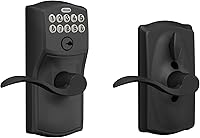
The SmartCode 270 includes the exterior touchpad, the interior lock, the latch, a mounting bracket, a strike plate, keys, a SmartKey tool and screws. The 260 packs a similar set, with 2 Kwikset keys, the interior and exterior deadbolt halves, the latch, mounting plate, strike and SmartKey learn tool.
The Halo Wi-Fi adds batteries in the box.
The SmartCode 270 and 260 both use 4 AA alkaline batteries, which are not included, so buy a pack before you begin. Kwikset says the batteries last at least 12 months.
The Halo Wi-Fi ships with its batteries already inside.
You'll also want a Phillips screwdriver that fits the screws snugly. A drill helps only if you're cutting a new deadbolt hole, which is a separate job from swapping a lock.
How do you fit the deadbolt and latch to the door?
Match the new lock to the existing holes, then tighten everything evenly so the deadbolt moves without rubbing. A lock that binds will drain the battery and make the keypad feel unreliable.
- Remove the old deadbolt and keep the latch and strike screws in a cup.
- Slide the new latch into the door edge and screw it down.
- Feed the exterior half through the outside hole and the interior half through the inside hole.
- Add the mounting plate and bracket, then hand-tighten the long screws.
- Fit the strike plate on the frame and test the throw.
Check the deadbolt lines up with the strike hole before you fully tighten. If it catches, loosen the frame screws slightly and shift the strike until the bolt drops in cleanly.
The Halo Wi-Fi fits doors between 1-3/8 and 1-3/4 inches thick, with an adjustable backset from 2-1/8 to 2-3/4 inches. The SmartCode 270 and 260 use the standard deadbolt cutout most homes already have.
Measure your door edge and backset before ordering if the door is older or nonstandard.
How do you program user codes on a SmartCode 270 or 260?
Enter programming mode with the existing programming code, then add each user code in turn. Kwikset builds the locks to hold 50 user codes, 10 one-time codes and 1 programming code.
The programming code is the master key for the keypad. It lets you add, edit or delete user codes without removing the lock from the door.
Keep it somewhere other than the keypad side of the door.
Work through the codes in a sensible order. Add your own first, then family members, then the dog walker or cleaner.
Write down which code belongs to whom so you can remove one later without wiping the others.
One-time codes are handy for a delivery or a contractor who needs in once. They stop working after a single use, so you don't have to remember to delete them.
On the Halo Wi-Fi you add codes in the Kwikset app instead of at the keypad. Kwikset says it supports up to 250 access codes, including temporary and scheduled ones for guests.
How do you set the auto-lock delay and vacation mode?
Pick an auto-lock delay that matches how you come and go, then test it from outside. Kwikset says the SmartCode 270 and 260 can relock every 30 seconds, 1 minute, 3 minutes, 5 minutes or 10 minutes.
A 30-second delay is tight if you're carrying groceries. A 3-minute or 5-minute window gives you time to get in and close the door without the bolt firing behind you.
Try your first choice for a week and change it if it feels rushed.
Vacation Mode turns the keypad off while you're away. Kwikset says no one can operate the lock from the keypad in that state, so it's a good switch to flip before a long trip.
Remember that your normal codes won't work until you turn Vacation Mode off again.
The Halo Wi-Fi lets you set the auto-lock duration in the app. It also sends notifications for invalid code attempts and tampering, so you can see what happened at the door while you were out.
What should you test before you rely on the lock?
Test the keypad, the thumbturn, the key and the auto-lock timer in one pass before the lock becomes your daily entry point. A five-minute check now saves a lockout later.
Start inside with the door open. Turn the thumbturn to throw the deadbolt and back, then try the key from outside.
Both should move smoothly with no extra force.
Next, enter a user code and confirm the bolt retracts. Try a wrong code three times in a row: Kwikset says the lock sounds an alarm and disables the keypad for 1 minute after 3 incorrect entries.
That pause is normal, not a fault.
Set the auto-lock delay, close the door and time it. The bolt should extend on its own when the timer runs out.
Then check that the interior thumbturn still works while the keypad is locked out.
Finally, test the keypad light. Kwikset says the SmartCode 270 has bright LED lights that come on when you tap the keypad, which matters if you come home after dark.
Which Kwikset SmartCode model fits your door?
Pick the 270 for the most features on a keypad lock, the 260 for a familiar round design and the Halo Wi-Fi when you want app control. All three share the same core code and auto-lock setup.
The SmartCode 270 is the strongest all-round keypad choice in the Kwikset line. It's BHMA Grade 2 certified, holds 50 user codes and adds a bright touchpad and SmartKey re-keying.
Our Kwikset SmartCode 270 review goes deeper on its daily behavior.
The SmartCode 260 trades the touchpad for a keypad and a round shape that suits traditional doors. It adds Microban protection on the keypad surface and keeps the same 50-code, auto-lock setup.
Its Venetian Bronze finish also hides fingerprints better than a painted matte surface.
The Halo Wi-Fi is the one to choose if you want to lock from your phone. It connects to Wi-Fi without a hub and works with Amazon Alexa and Google Home.
Setup still starts at the door, but the code and auto-lock settings live in the app.
If you're still weighing keypad locks against each other, our guide to how to choose a keyless door lock covers the trade-offs. Our smart door handle lock picks are the alternative if you'd rather replace the handle than the deadbolt.
How do you keep the lock working after setup?
Recheck the deadbolt alignment and the battery level every few months, because most keypad complaints trace back to one of those two things. A lock that rubs or runs low will start missing codes.
Wipe the keypad with a soft, slightly damp cloth and dry it. Avoid harsh cleaners on the touchpad or the finish.
On the 260, Kwikset treats the hardware with Microban, but that doesn't make abrasive scrubbing a good idea.
Replace all 4 AA batteries together when the lock warns you, rather than mixing old and new cells. Keep a spare key outside the house in case the keypad ever stops responding.
Check the strike plate seasonally. Wood doors swell and shift with the weather, so a bolt that fit in fall can drag in summer.
A quick loosen and nudge keeps the keypad working as intended.
What's the short version of setting up a Kwikset SmartCode lock?
Fit the hardware, program your codes, set the auto-lock delay and test everything from outside. Once those steps are done, the lock is ready for household use, and adding or removing a code later takes less than a minute.
Use this order: install the latch and deadbolt, enter programming mode with your programming code, add your user codes and one-time codes, then choose a delay for auto-lock. Turn on Vacation Mode when you leave and off when you return.
For the full comparison of Kwikset's keypad models before you buy, see our Kwikset smart lock guide. If you'd rather hand off the fit, a locksmith can install the deadbolt and you can program the codes yourself in a few minutes.
Frequently asked questions
How many user codes can a Kwikset SmartCode lock hold?
Kwikset says the SmartCode 270 and 260 each hold up to 50 user codes, plus 10 one-time codes and 1 programming code. The Halo Wi-Fi supports up to 250 access codes through the Kwikset app, including temporary and scheduled ones.
What batteries does a Kwikset SmartCode lock take?
The SmartCode 270 and 260 each use 4 AA alkaline batteries, which are not included. Kwikset says the battery lasts at least 12 months.
The Halo Wi-Fi ships with batteries included.
Can I use a Kwikset SmartCode lock without Wi-Fi?
Yes. The SmartCode 270 and 260 are keypad locks that run entirely on batteries and need no hub or app.
The Halo Wi-Fi connects to your home Wi-Fi so you can lock and open from the Kwikset app, but its touchscreen still works as a keypad.
What is auto-lock on a Kwikset SmartCode lock?
Auto-lock is a setting that relocks the deadbolt on its own after a set delay. Kwikset says you can set the SmartCode 270 and 260 to lock every 30 seconds, 1 minute, 3 minutes, 5 minutes or 10 minutes.
Can I install a Kwikset SmartCode lock on any door?
It fits standard doors with a deadbolt cutout, and Kwikset says installation needs only a screwdriver. The Halo Wi-Fi fits doors from 1-3/8 to 1-3/4 inches thick with an adjustable deadbolt backset from 2-1/8 to 2-3/4 inches.